 WebEaze
Welcome to your Client Portal, your one-stop shop for managing your website needs.
Note: The Website Request page has been replaced with the Client Portal.
Invite and Sign In
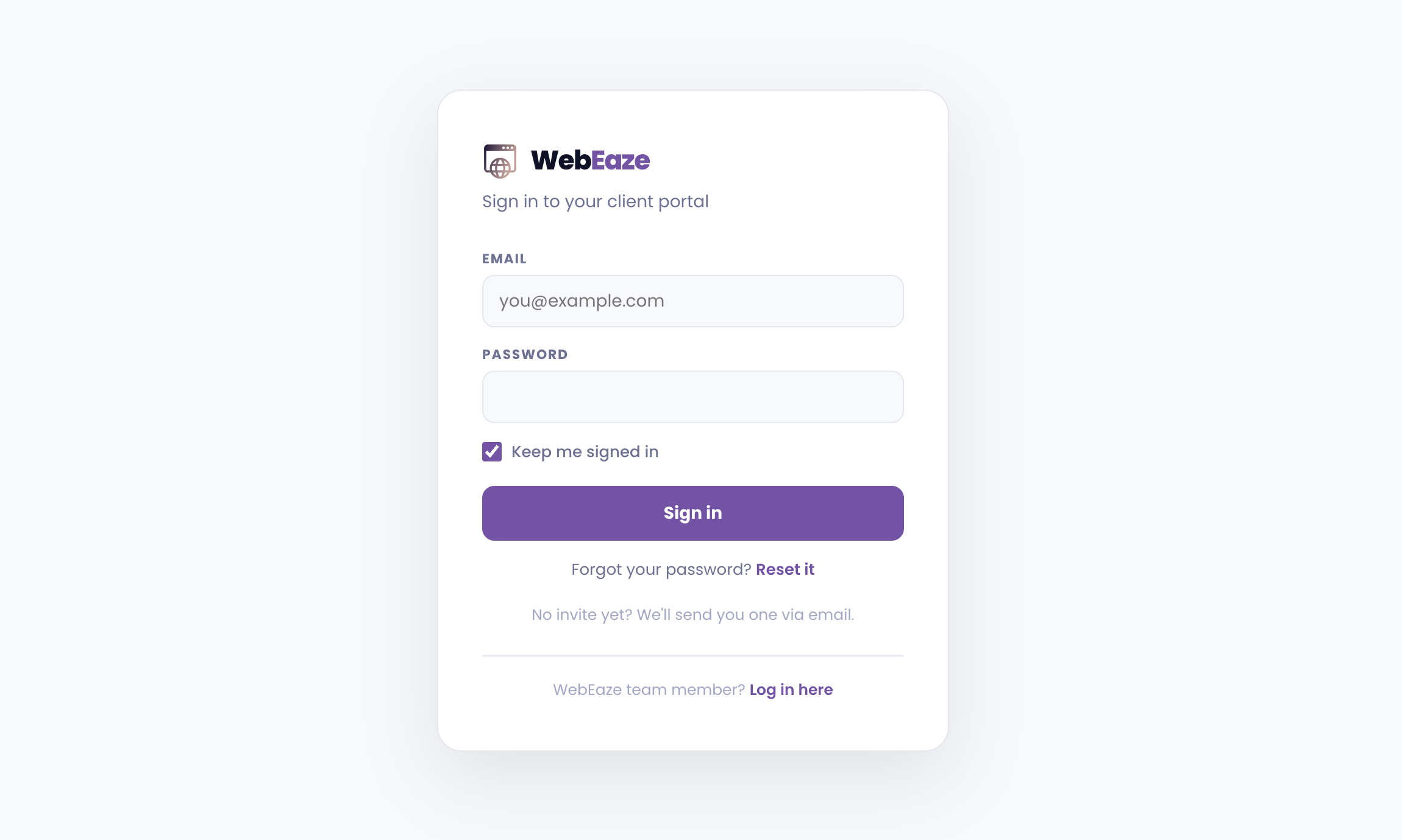
You'll receive an invite from us when your account is ready via email. Select "Accept invitation" and set your password.
Then, bookmark portal.webeaze.io and sign in with your email and password. Check "Keep me signed in" to stay logged in between visits, only on a device that's yours.
Home
Submit Requests
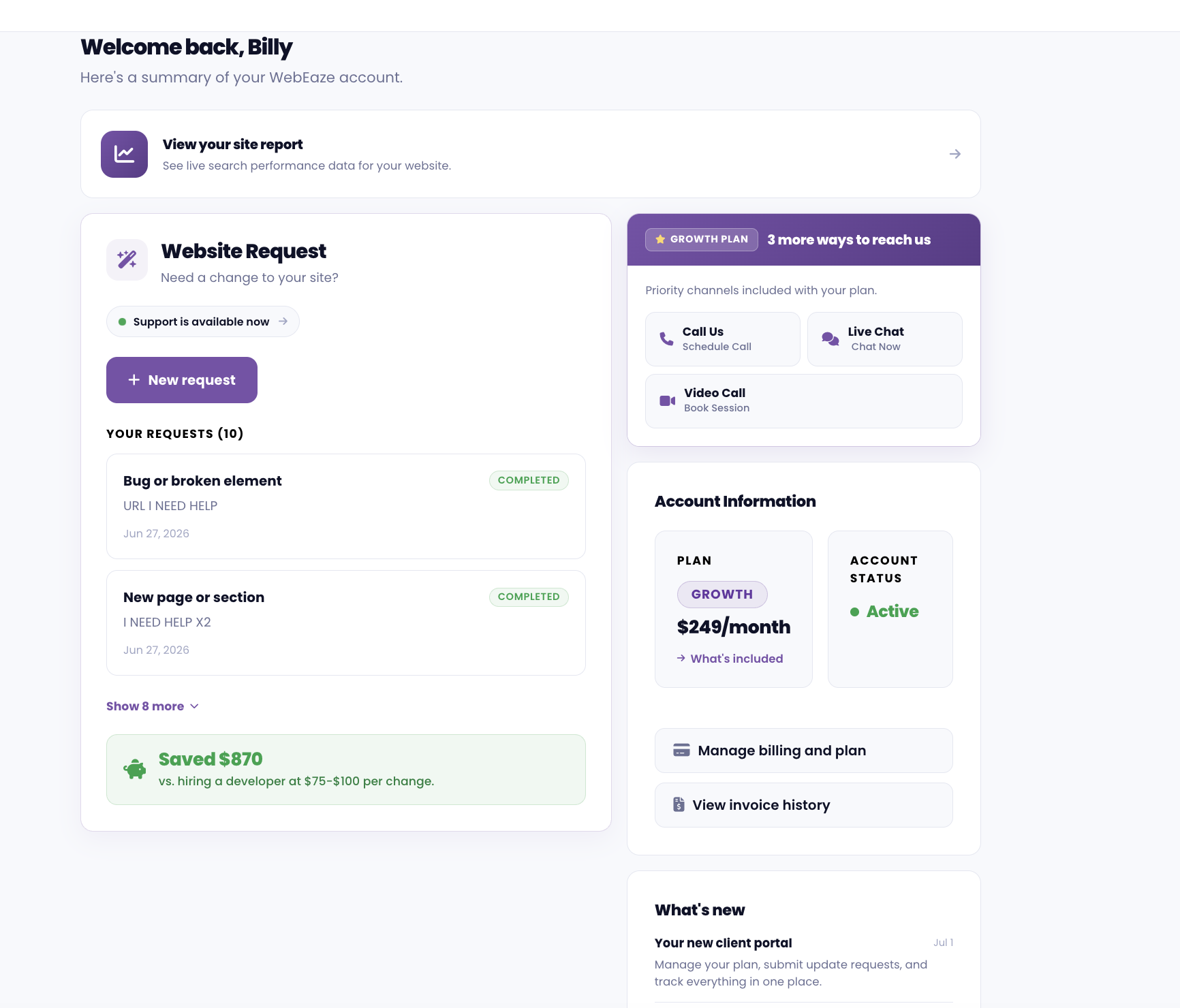
On your home page, select the box under What do you need? to submit a request. You'll select your topic, add details, and attach any relevant files. Once you submit, you can track the status of your request.
Finding your way around
On a computer, the menu is on the left. On a mobile device, the menu is at the bottom of the screen, and More opens more options.
Your account
Select in the top right corner to open your account. It holds your sign-in details, your website, your plan and billing, who can sign in, the devices you're signed in on, and the emails we send you.
Messages
Your conversation with us. Send files, ask quick questions, and see your replies to our emails in one place. More about Messages.
Site report
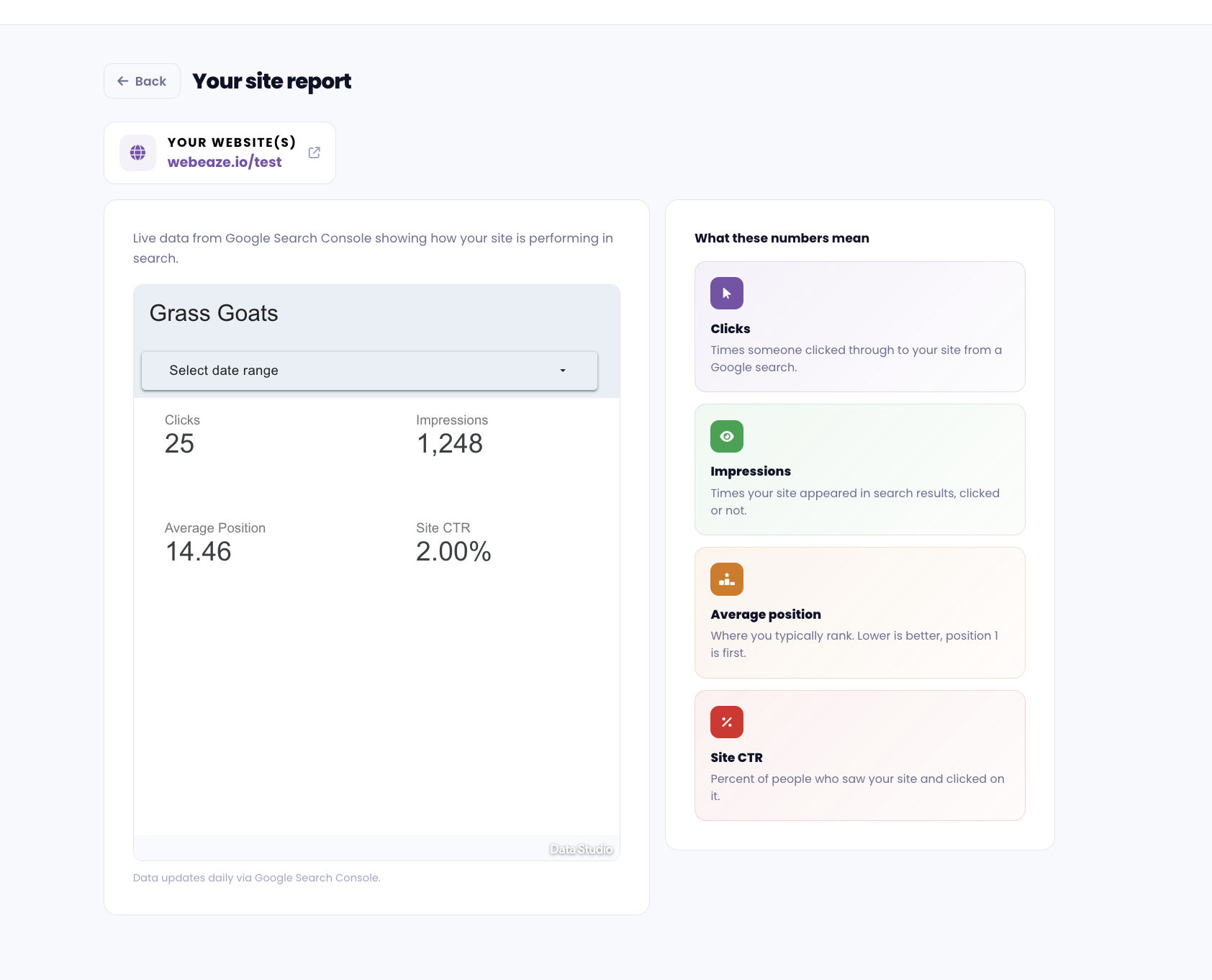
The biggest benefit of the portal. See your site's performance, SEO, rankings, review performance, and more. Find it under Site report in the menu.
Milestones
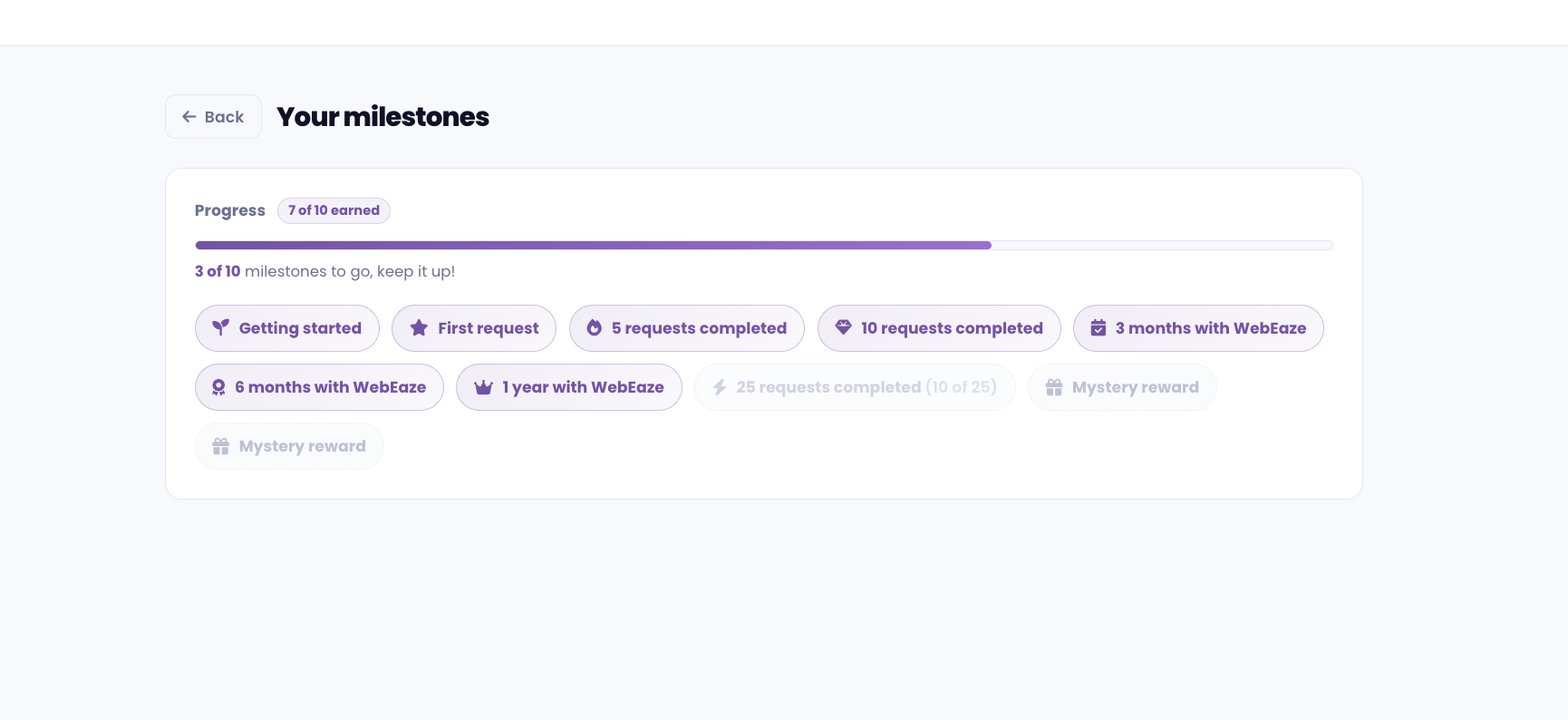
Earn rewards for being a client with us. You'll see your progress and achievements here and may be rewarded with special offers. Find it under Milestones in the menu.
Requests
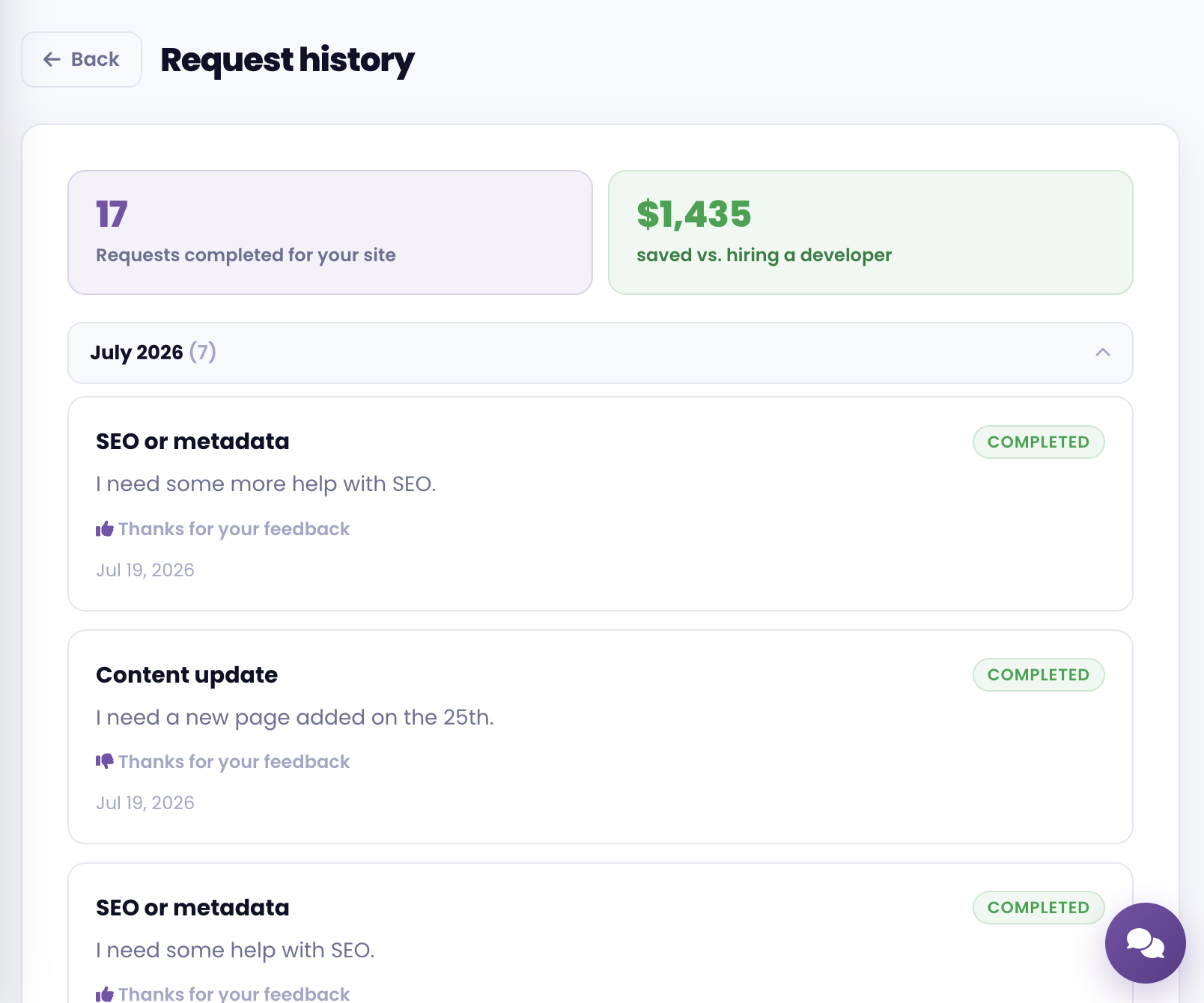
See your complete record of past requests with us. Find it under Requests in the menu.
Refer and earn
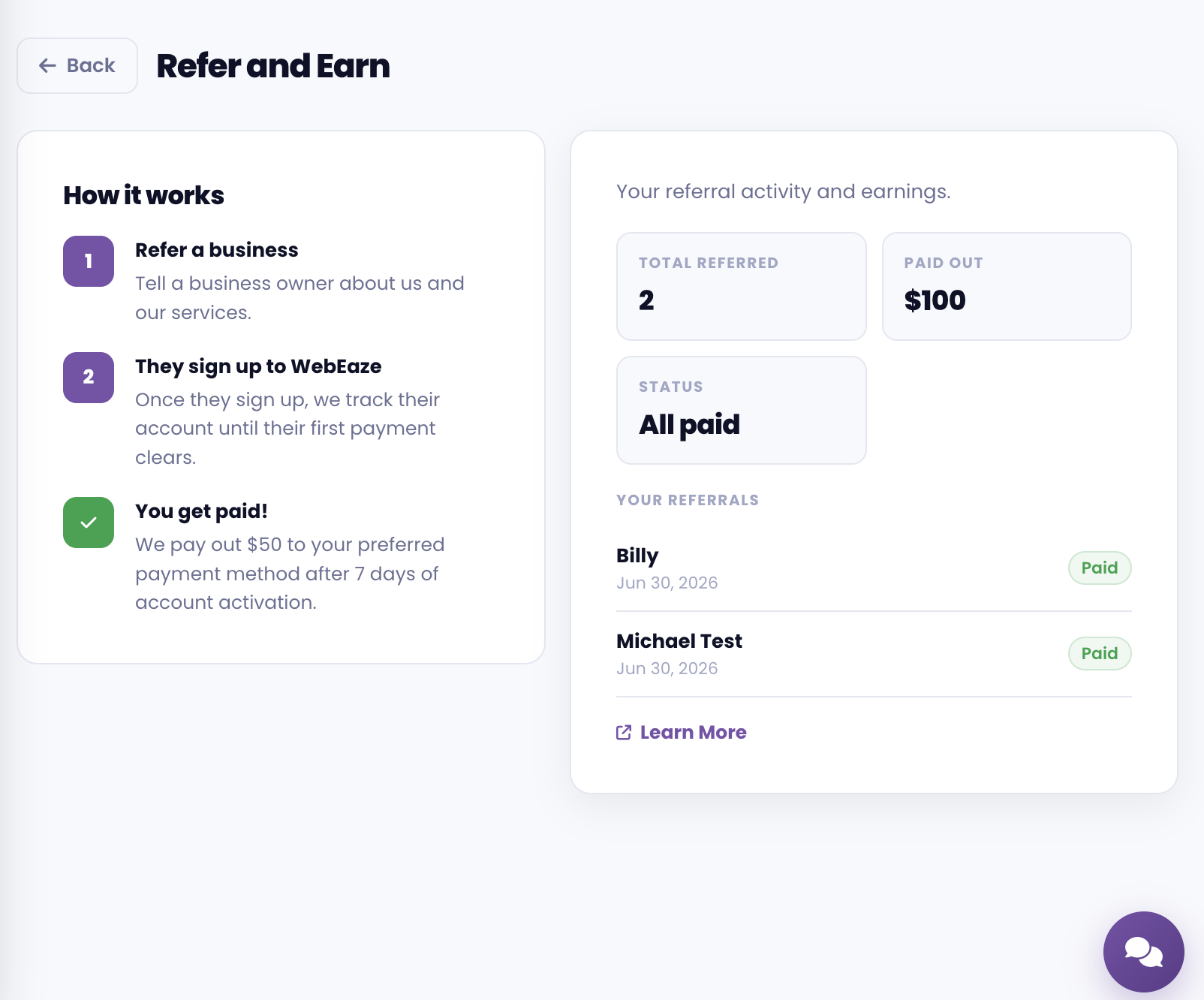
Earn cash rewards when you refer businesses to us and they sign up. Find it under Refer and earn in the menu.
Get help
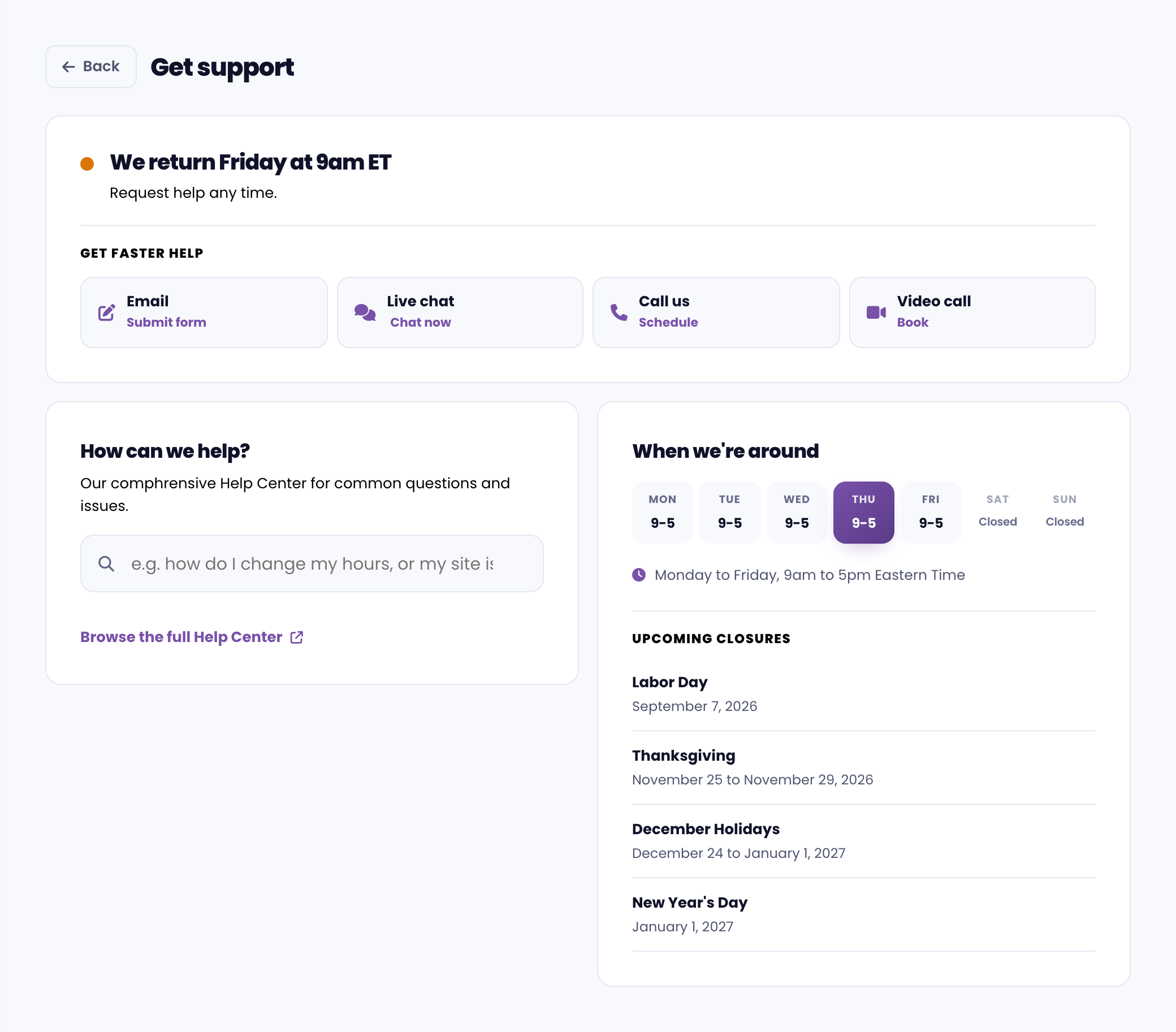
Get help looks at your account and starts with anything that might need you, like a reply we're waiting on. From there you can see whether we're around right now, chat with us, check our hours and upcoming closures, and search the Help Center. Find it under Get help in the menu.
More to come
The portal is constantly improving. You'll see new features as they are released based on client feedback and trends.